Choose which apps Unglue restricts
To block an app with Unglue, first make sure it is selected as one of Unglue's restricted apps. Everything on that list is blocked by default, and opens only while you are spending Coins on an unlock.
Open the Restricted Apps sheet
In Unglue, head to Settings > Blocking > Restricted Apps > Edit Selection.
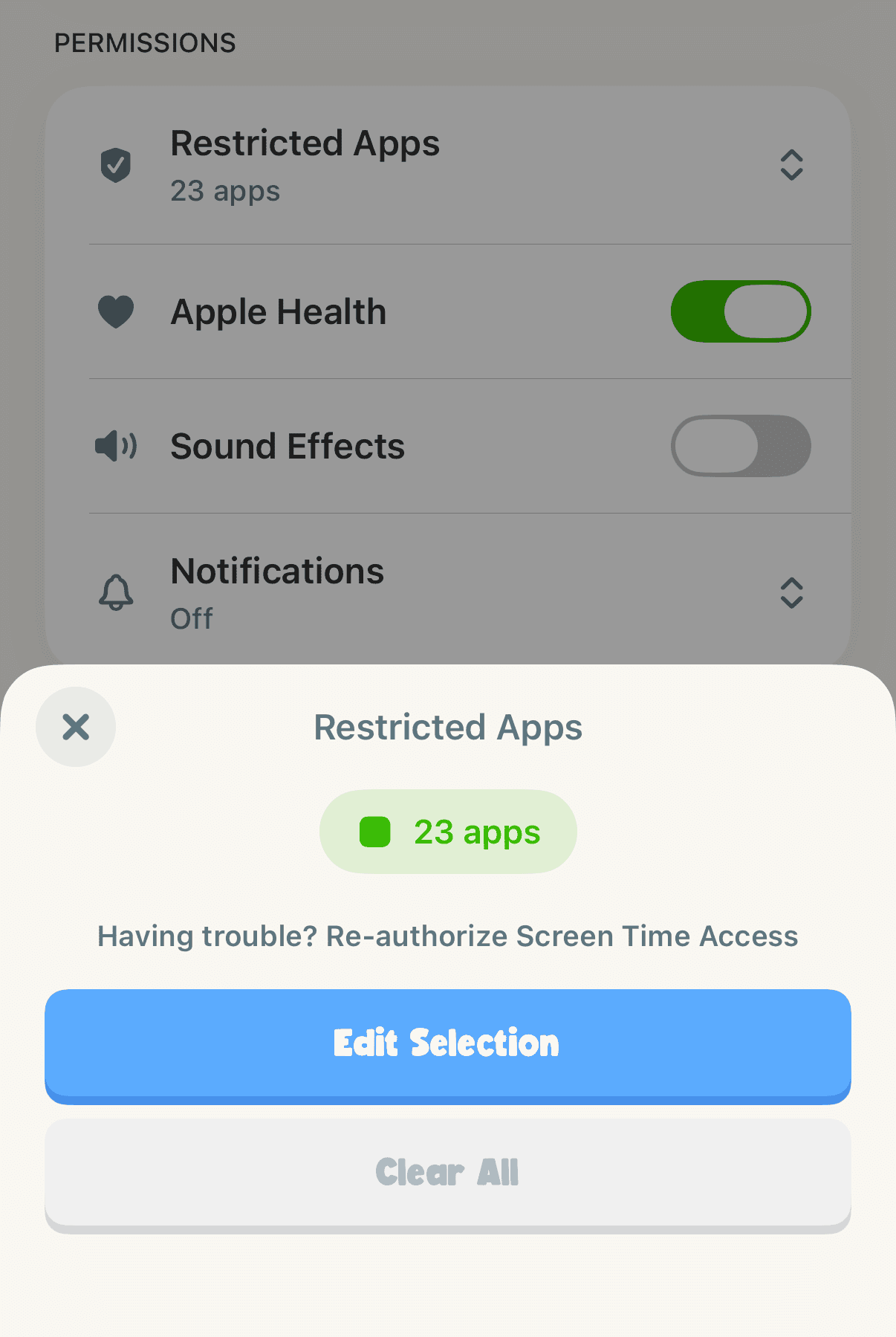
Pick apps or whole categories
Select the specific app or whole category you want to block. In the image below, YouTube is selected as an example.
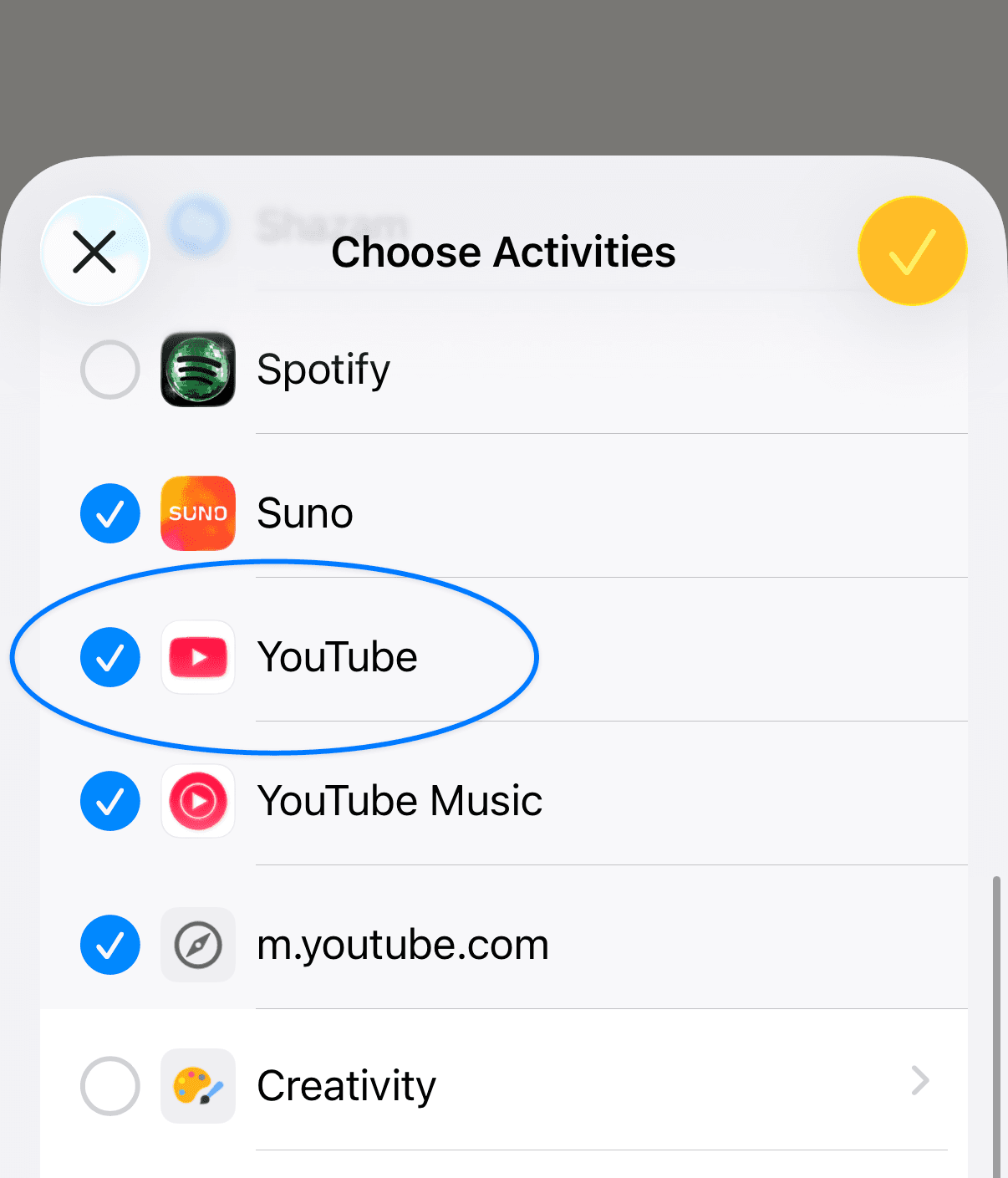
On iPhone, Unglue also selects the equivalent Safari website by default, such as m.youtube.com for YouTube, so the browser is not an open back door.
Save
Tap the checkmark in the top-right corner. Your app is now blocked by default unless you unlock it with the Coins you earned, or come back here and unselect it later.
Keep the list honest
If you find yourself removing apps the moment you want them, turn on Selection Lock. Adding apps stays free, but removing one then needs a Buddy Code held by someone you trust.